Setup Instructions
- Go to the Alexa Console (https://developer.amazon.com/alexa/console/ask)
- If you have not registered as an Amazon Developer then you will need to do so. Fill in your details and ensure you answer "NO" for "Do you plan to monetize apps by charging for apps or selling in-app items" and "Do you plan to monetize apps by displaying ads from the Amazon Mobile Ad Network or Mobile Associates?"
- Once you are logged into your account click "Create Skill" on the right hand side.
- Give your skill any name, eg "My YouTube Skill".
- Important Set the language to whatever your Echo device is set to. If you are not sure, go to the Alexa app, go to Settings, Device Settings, then click on your Echo device, and look under Language. If your Echo is set to English (UK), then the skill must be English (UK), other types of English will not work!
- Choose "Custom" as your model, and "Provision Your Own" as your method, then click "Create Skill". On the template page, choose "Start from scratch".
- On the left hand side, click "JSON Editor".
- Delete everything in the text box, and copy in the text from https://raw.githubusercontent.com/ndg63276/alexa-youtube/master/InteractionModel_en.json, (or use InteractionModel_fr.json, InteractionModel_it.json, InteractionModel_de.json, InteractionModel_es.json for French, Italian, German or Spanish)
- Click "Save Model" at the top.
- Click "Interfaces" in the menu on the left, and enable "Audio Player" and "Video App". Click "Save Interfaces".
- Click "Endpoint" in the menu on the left, and select "AWS Lambda ARN". Under "Default Region", put the ARN. You can get an ARN by sponsoring me on https://www.patreon.com/alexayoutube, or make your own using the instructions under "Deploying yourself", below. (If you would like to test the skill before sponsoring me, put arn:aws:lambda:eu-west-1:175548706300:function:YouTubeTest - but this will only play Gangnam Style.)
- Click "Save Endpoints"
- Click "Permissions", at the very bottom on the left.
- Turn on "Lists Read" and "Lists Write".
- Click "Custom" in the menu on the left.
- Click "Invocation" in the menu on the left.
- If you want to call the skill anything other than "youtube", change it here. Click "Save Model" if you change anything.
- Click "Build Model". This will take a minute, be patient. It should tell you if it succeeded.
- Important: At the top, click "Test". Where it says "Test is disabled for this skill", change the dropdown from "Off" to "Development".
Deploying yourself (optional)
https://github.com/ndg63276/alexa-youtube/wiki/Running-your-own-lambda-instance
https://www.slickremix.com/docs/get-api-key-for-youtube/
This page was created using the guide @tal9000v2 put together, big thanks to him.
First, get your Google API key, following instructions here.
Then, log into the AWS Console and go into Lambda. Choose your region as one of:
Then click Create Function. Select "Author From Scratch". Give your function a name. Probably something like "YouTube". Under Runtime, choose Python 2.7.
Under Permissions, click "Choose or Create an Execution Role", then "Create a new role with basic lambda permissions".
When it has done the creation, on the new screen, under "Add Triggers", click "Alexa Skills Kit". Down below select "Disable" on the Skill ID Verification.
Now you've got your basic Lambda Function setup. Will look like this.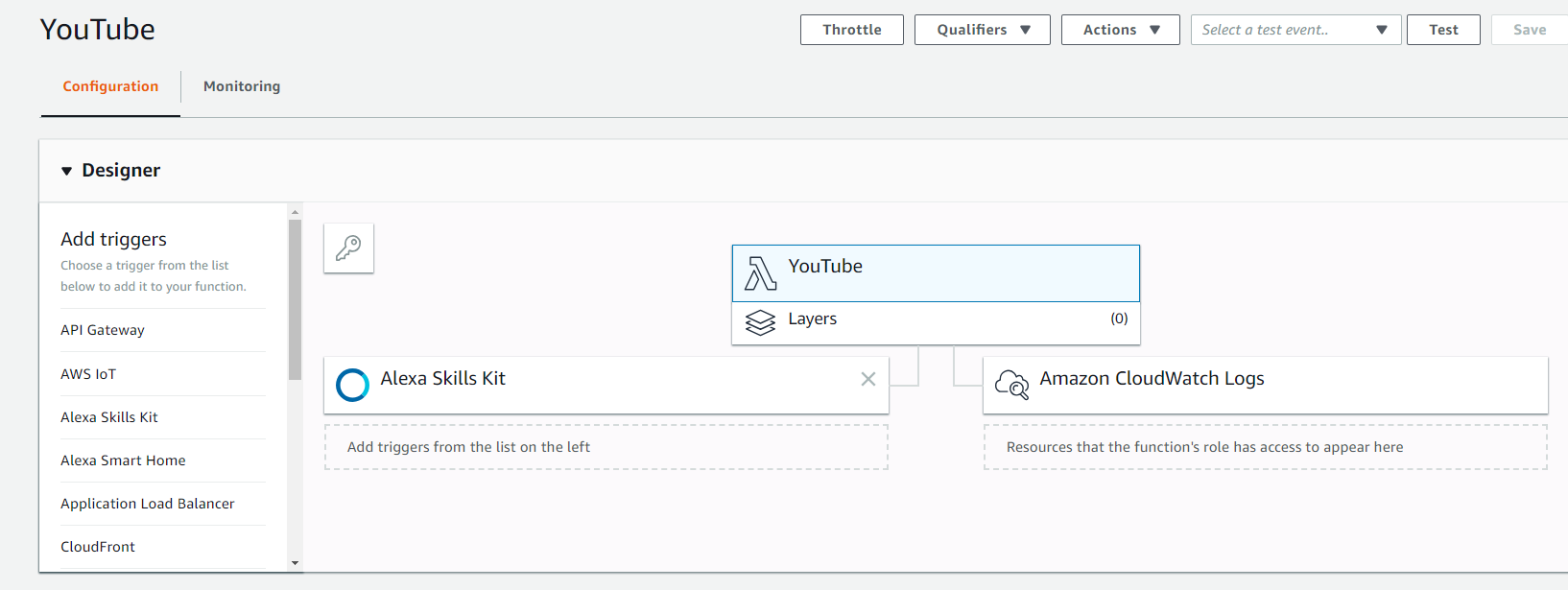
Now lets get the Function updated with @ndg63276 goods. Go and upload the lambda_function.zip which you can download from the repo here.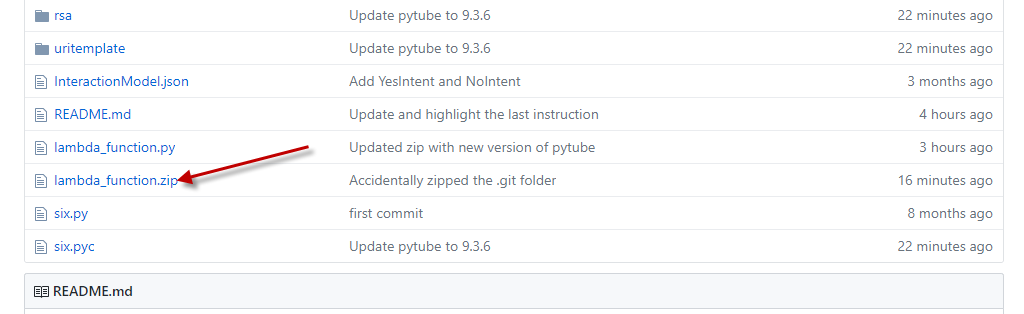
Download that zipfile locally. After you have it, let's upload that into your Lambda Function.
You need to add 1 environment variable. It should be called "DEVELOPER_KEY" and value should be your Google YouTube API Key.
Also, make sure you update your Memory utilization to 512MB with a timeout of 10 seconds.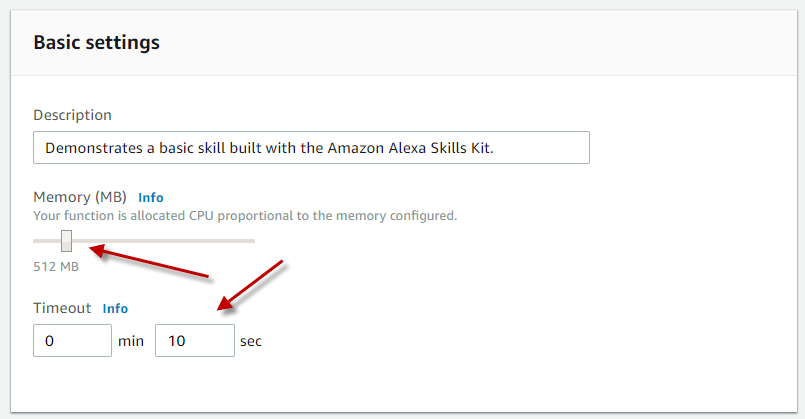
Hit SAVE to update your Function.
Now up at the Top of the screen you will notice your ARN #. Copy that.
Log into your Developer Console and go into your Alexa Skill and update the Endpoint using YOUR arn #.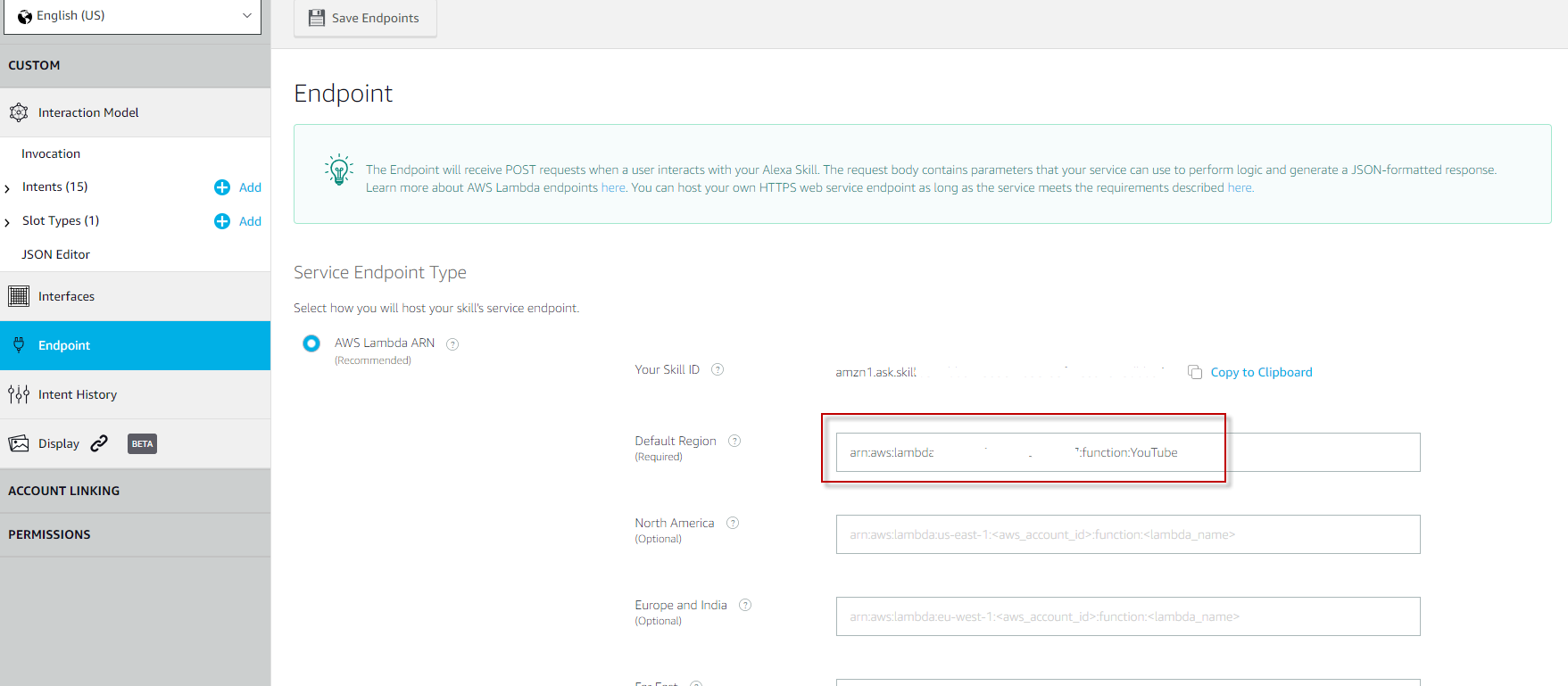
That should do it.
Now just give a quick test. In the Developer console, navigate to "Test" and try it out. Make sure you have the "Developer" mode enable. And test it out.
NOTE: The Emulator will NOT be able to actually play the audio in your browser. That is expected. But if you get a response back from your test, then it will be good on your Alexa enabled device.
First, get your Google API key, following instructions here.
Then, log into the AWS Console and go into Lambda. Choose your region as one of:
Then click Create Function. Select "Author From Scratch". Give your function a name. Probably something like "YouTube". Under Runtime, choose Python 2.7.
Under Permissions, click "Choose or Create an Execution Role", then "Create a new role with basic lambda permissions".
When it has done the creation, on the new screen, under "Add Triggers", click "Alexa Skills Kit". Down below select "Disable" on the Skill ID Verification.
Now you've got your basic Lambda Function setup. Will look like this.
Now lets get the Function updated with @ndg63276 goods. Go and upload the lambda_function.zip which you can download from the repo here.
Download that zipfile locally. After you have it, let's upload that into your Lambda Function.
You need to add 1 environment variable. It should be called "DEVELOPER_KEY" and value should be your Google YouTube API Key.
Also, make sure you update your Memory utilization to 512MB with a timeout of 10 seconds.
Hit SAVE to update your Function.
Now up at the Top of the screen you will notice your ARN #. Copy that.
Log into your Developer Console and go into your Alexa Skill and update the Endpoint using YOUR arn #.
That should do it.
Now just give a quick test. In the Developer console, navigate to "Test" and try it out. Make sure you have the "Developer" mode enable. And test it out.
NOTE: The Emulator will NOT be able to actually play the audio in your browser. That is expected. But if you get a response back from your test, then it will be good on your Alexa enabled device.


how much it cost getting your own lambda?
ReplyDeletehttps://aws.amazon.com/lambda/pricing/
Deletedo you have the file? its not found anymore
ReplyDelete